
A guide for school staff.
Gradelink's financial and billing tools are primarily an accounts receivable program. You program fees and transactions into family or student accounts, families see that information when they log in, and you use the same data to run internal reports. This guide explains how billing is organized, how fees get onto a student's ledger, what parents see, and your options for online payment.
1. How much does this cost?
Gradelink's financial record keeping is free. This includes everything except online payment: the balance sheets, reports showing how much each student or family paid, and what the school brings in per category such as tuition and after-care fees.
Payment processing is provided through our integrated partner PaySimple. Schools may use other payment processors including FACTS Tuition Management, but currently payments must be added to the ledger manually.
2. How transactions are organized
Every fee or payment is a transaction. Transactions are grouped into customizable categories, such as Tuition, Registration, Lunch, Before & After care, Field Trips, or anything else you need. Each transaction also has a type: Charge, Payment, Credit (memo) or Debit (memo). Credit and debit memos let you account for things like discounts, scholarships and grants.
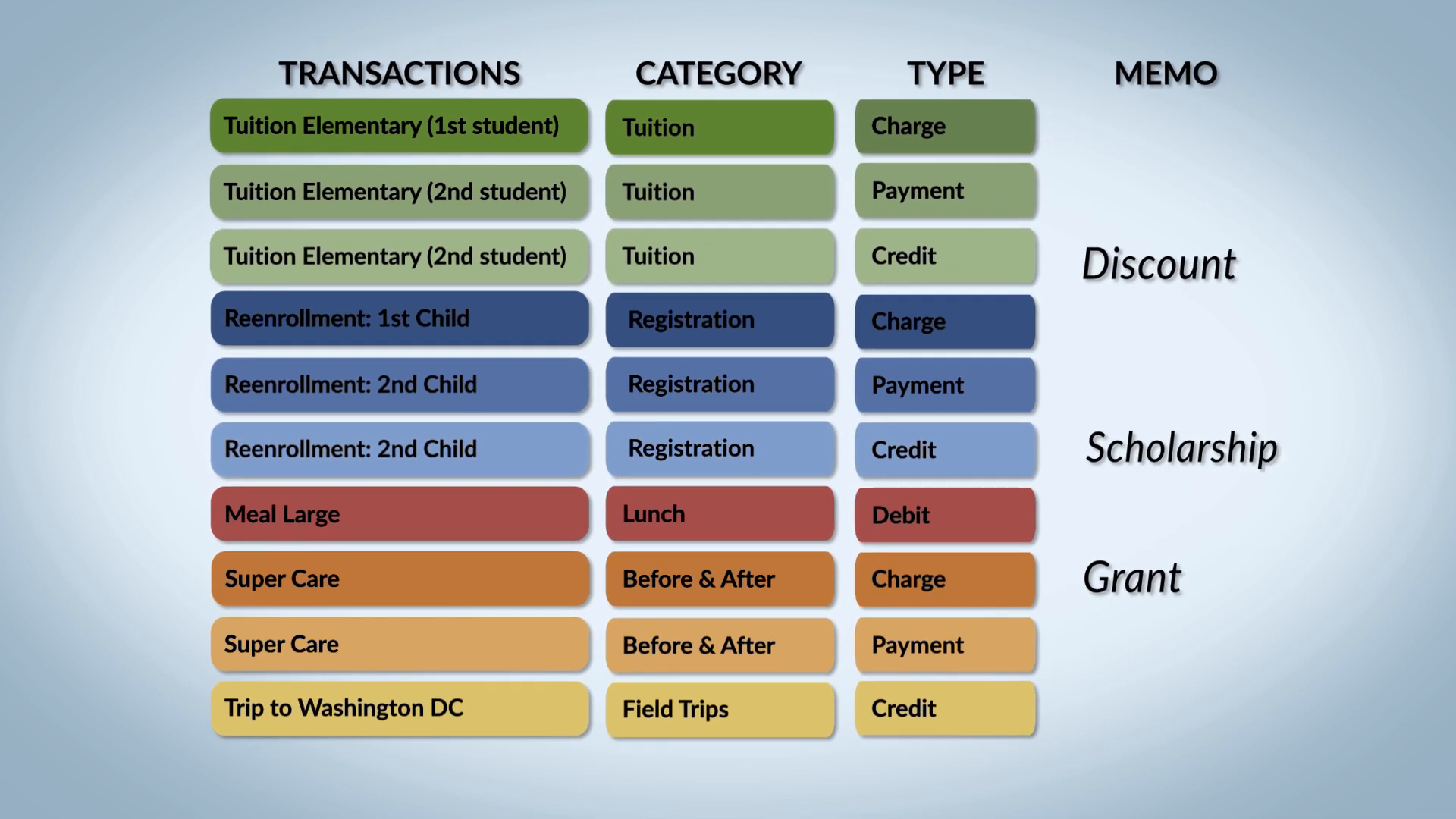
All of this is recorded on individual student ledgers, so you can run reports to see who has paid and who hasn't, or produce statements for families. Most financial reports can be exported to Excel, PDF or Word.
3. Adding fees to a ledger
There are four ways to get fees onto a student's ledger:
- One-time fees: enter the transaction directly on the student's ledger (Financial > Ledger tab).
- Batch transactions: add the same fee to a group of students or families at once.
- Contracts: set up fees that post automatically on scheduled dates.
- Attendance-linked fees: recurring daily fees such as school lunch or after-school care can be tied to attendance.
Batch transactions
- 1On the Ledger tab, click Batch Transactions.
- 2Filter and check the students to charge (by Status, Grade, Div., Tags or Classes), then choose the Date, Session, Transaction Type, and Amount. Check Apply one transaction per family if the fee should be charged once per family rather than per student.
- 3Click Add Batch Transaction.
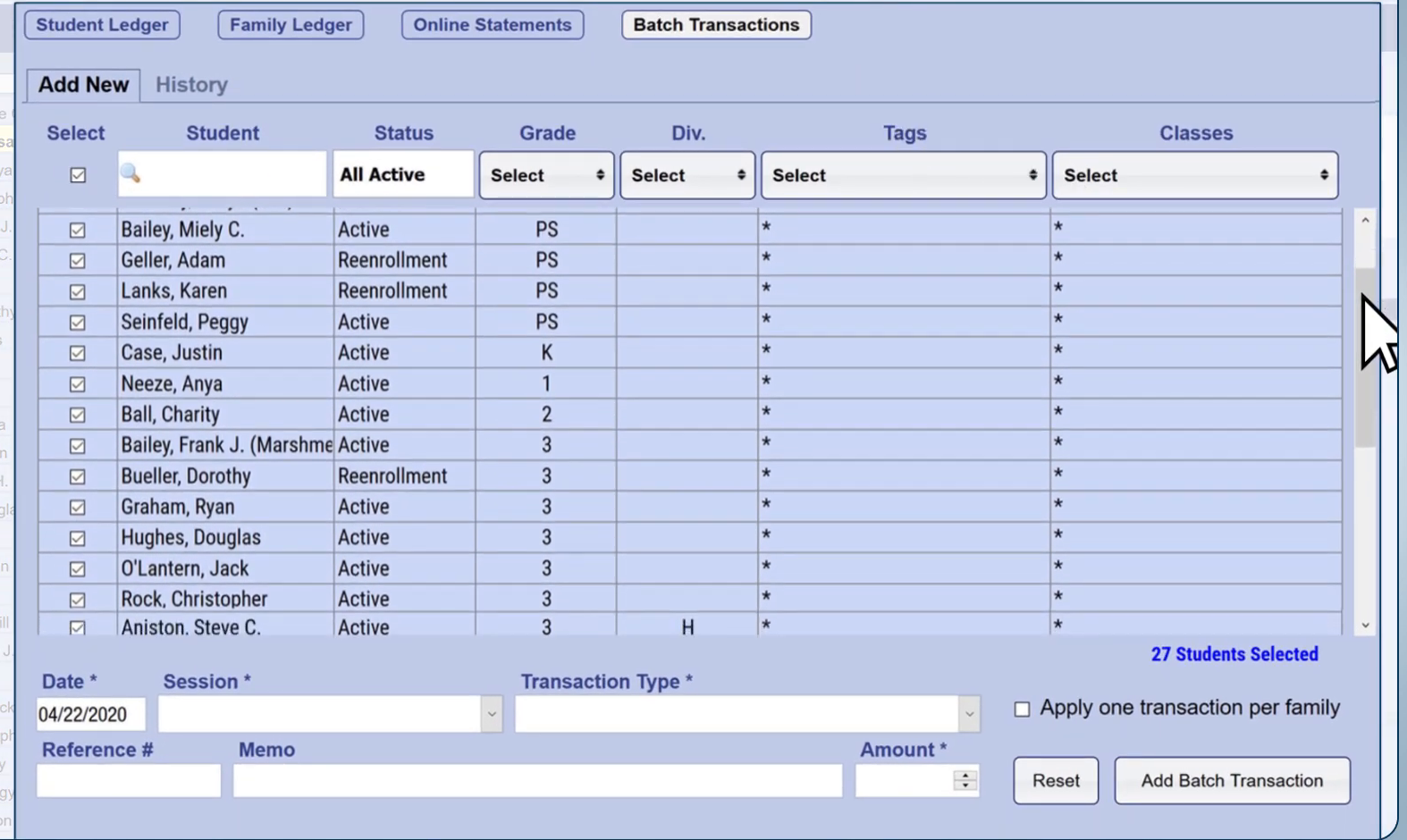 1 2 3
Contracts
Fees can be automated from the Contract tab at the top of the page. Choose the Session, Contract Date, Transaction Type, Payment Plan (for example 1 Payment or 10 Payments, Sept-Jun) and Total Amount. Once a contract is set up, the programmed fees post automatically to the student's ledger on the scheduled dates.
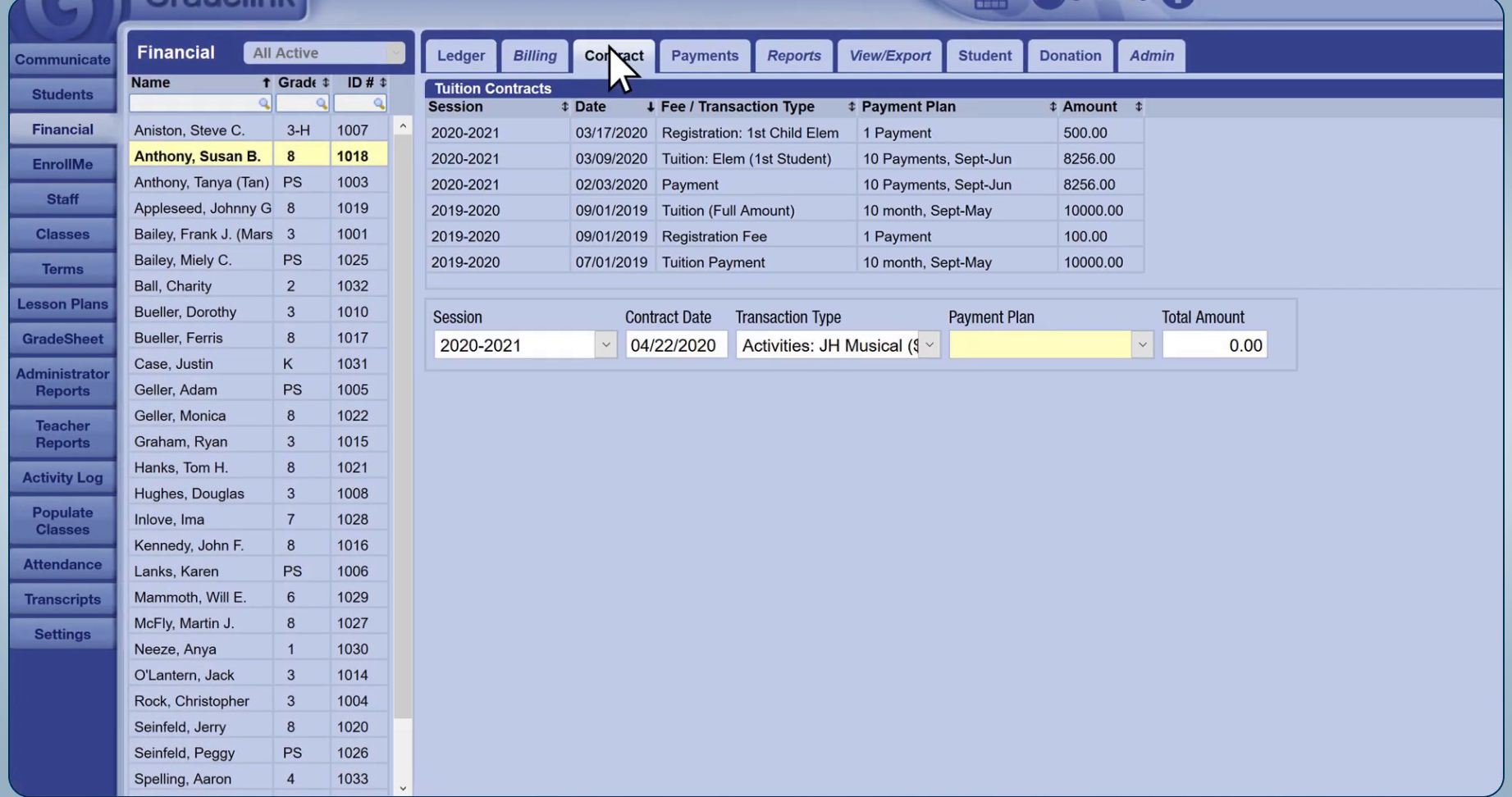 1 2 3
Attendance-linked fees
Recurring daily fees, such as school lunch or after-school care, can be tied into attendance. When the value is selected while taking attendance (for example a Lunch or Care column on the School Attendance page), the matching charge is sent to the student's ledger automatically.
4. Statements and reports
Use the Reports tab to run receivables reports such as statements.
- 1Open the Reports tab.
- 2Choose a Report to run (for example Statements).
- 3Select a Session.
- 4Choose a Billing period (or a custom date range) and whether to include All Students or filter by student or family.
- 5Click Run / Refresh Report. Use Generate PDF to create a printable copy.
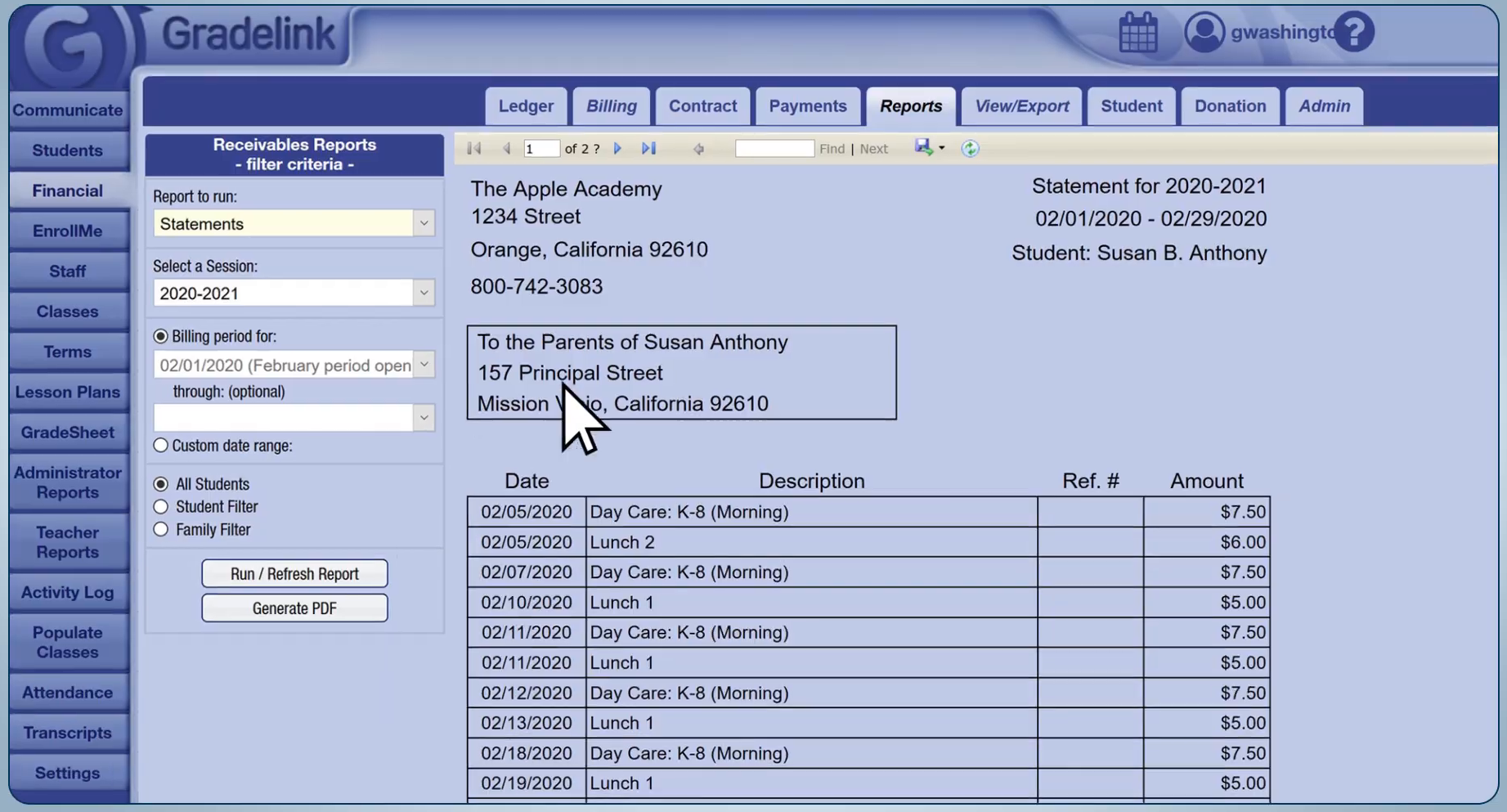 1 2 3 4 5
5. What parents see
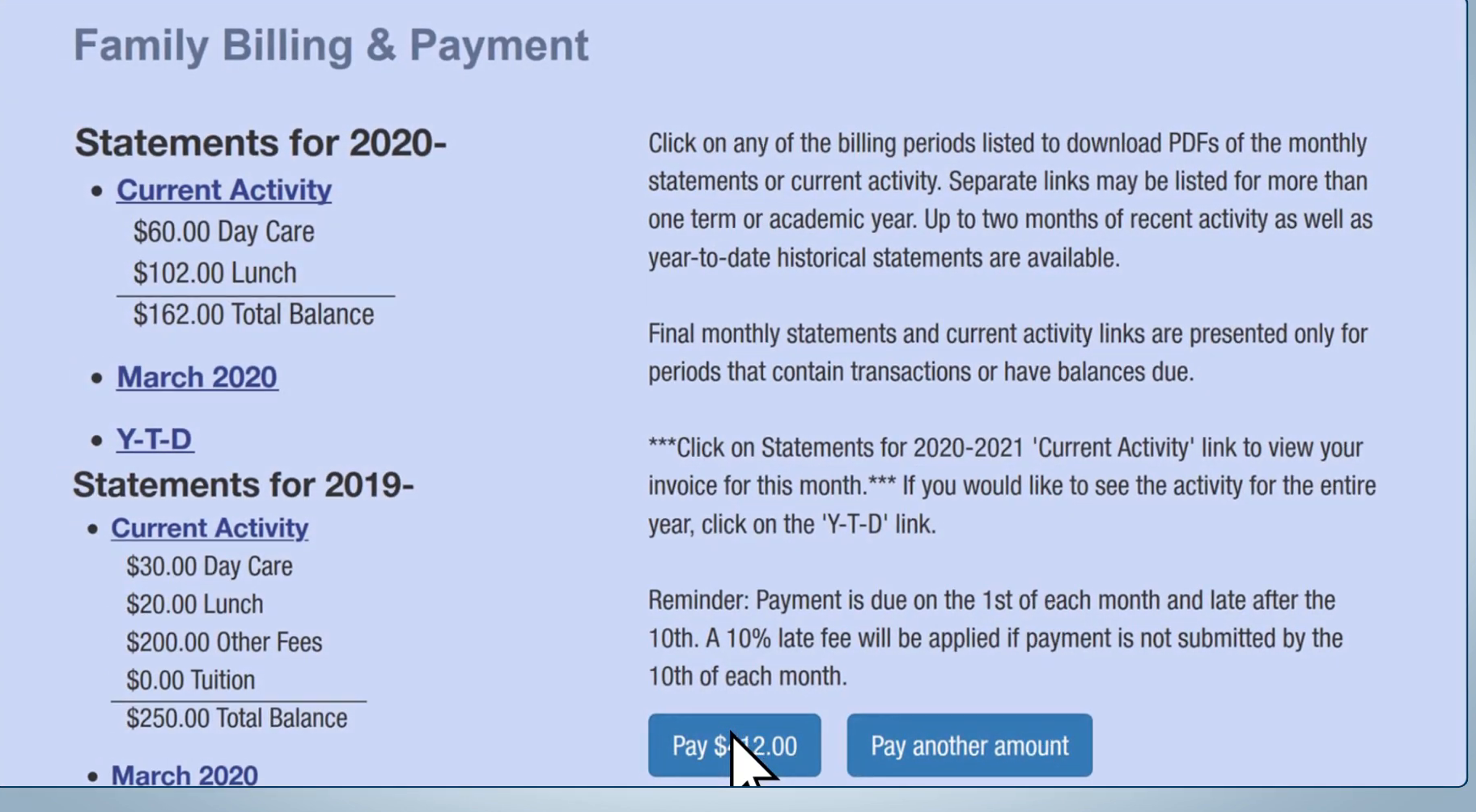
Parents log in and open the Billing tab to see the Family Billing & Payment page. It lists statements by school year, with links for Current Activity, each monthly statement (for example March 2020), and Y-T-D, along with a category breakdown and total balance. Clicking any link downloads a PDF statement with a detailed breakdown of when charges were incurred.
 1 2 3 4 5
With online payment enabled, parents can pay by credit card or ACH (electronic check) right from this page, either the balance shown or Pay another amount. They can also set up recurring payments on the Add AutoPay Plan tab. Because the payment processor is integrated, parents don't need a separate username or password.
Viewing submitted payments
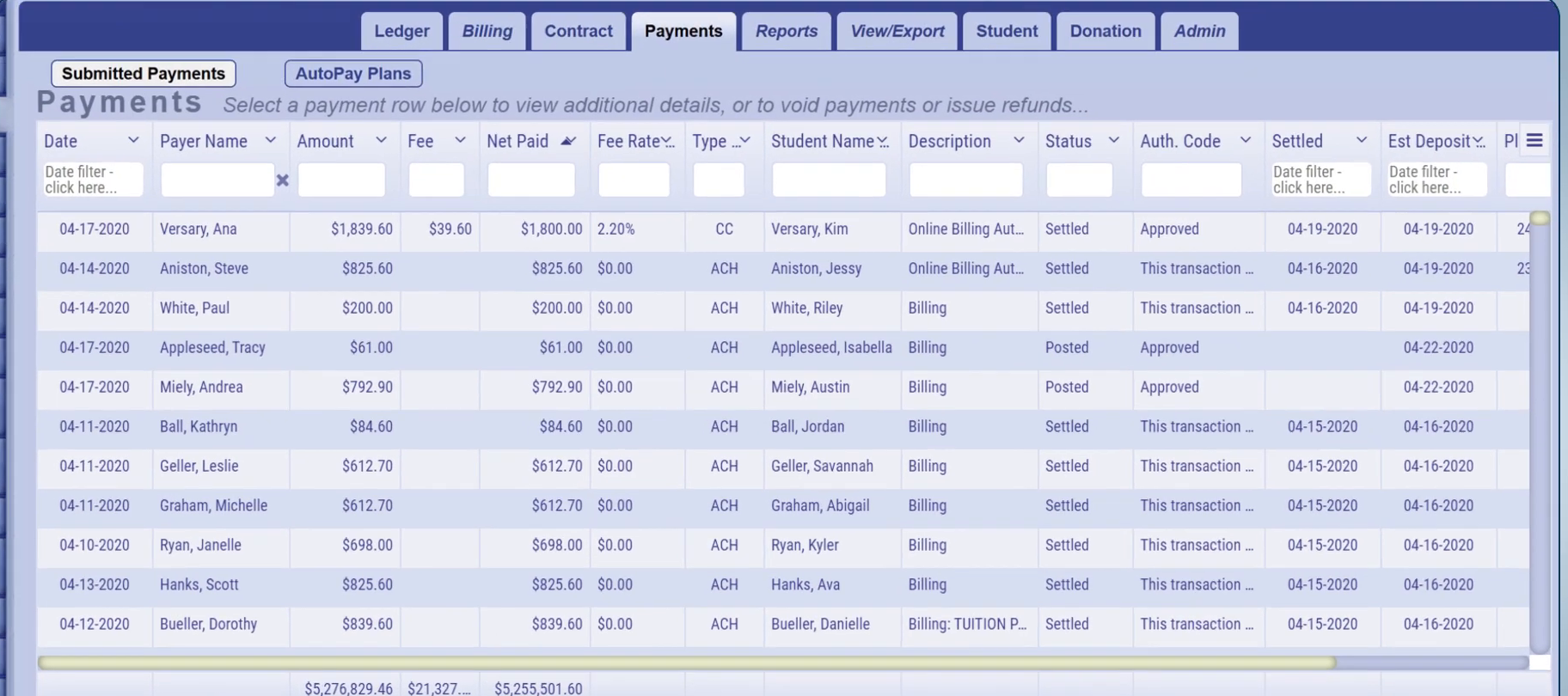
Administrators can see all submitted online payments on the Payments tab, under Submitted Payments, and recurring plans under AutoPay Plans. Sort or filter by payer, amount, status and more. Select a payment row to see details, void a payment or issue a refund.
 1 2
6. Online payment options
PaySimple
- An integrated payment processor: parents and/or students pay from within Gradelink.
- Supports one-time payments, such as registration fees, and recurring monthly payments for tuition. Weekly payment schedules are not supported at this time.
- Recurring payments can be set up by the parent or the bookkeeper. Schools can remove the option for students and parents to create or edit a recurring schedule, so that all schedules are created by the bookkeeper.
- Works with EnrollMe, Gradelink's online admissions product, so you can collect one-time registration fees at the same time.
- Gradelink customers receive discounted pricing for PaySimple's services.
- Transactions made using PaySimple's own portal won't appear in the Gradelink ledger, so they need to be entered manually.
- Payments are not tied directly to a charge, so a parent may make a general payment covering several items. The bookkeeper should check the memo line to see which charges it applies to.
- Bookkeepers can see PaySimple payments in Gradelink on the Payments tab as well as the school's PaySimple portal.
- PaySimple syncs with QuickBooks Online. Learn more about this sync.
- Schools can choose which payment methods to accept, including Visa, MasterCard, American Express, Discover Card, and/or ACH payments. Simply inform your support rep which methods you approve.
FACTS Tuition Management
- A collection service that collects tuition from families and deposits it into the school's bank account.
- FACTS offers collection services for late payment an option for schools.
- FACTS charges families directly an annual fee for this service, in addition to any credit card fees.
- Transactions made using FACTS won't appear in the Gradelink ledger.
- Single sign-on: once configured, parents press Billing in the Gradelink parent portal which provides a direct login to their FACTS account on the FACTS website.
- Administrators and bookkeepers can check balances by logging in to FACTS or by reviewing the balance reports emailed to them.
- FACTS syncs with QuickBooks Desktop and QuickBooks Online.
Click here to set up single sign-on between FACTS and Gradelink.
Prefer video?
This walkthrough is also available as a short video.