
Scenario:
How can we display student service hours on transcripts?
Solution:
Schools can display approved student Service Hours totals per school year on transcripts as long as the feature is enabled. Service Hours appear on the transcript after Tests/Awards/Degrees.
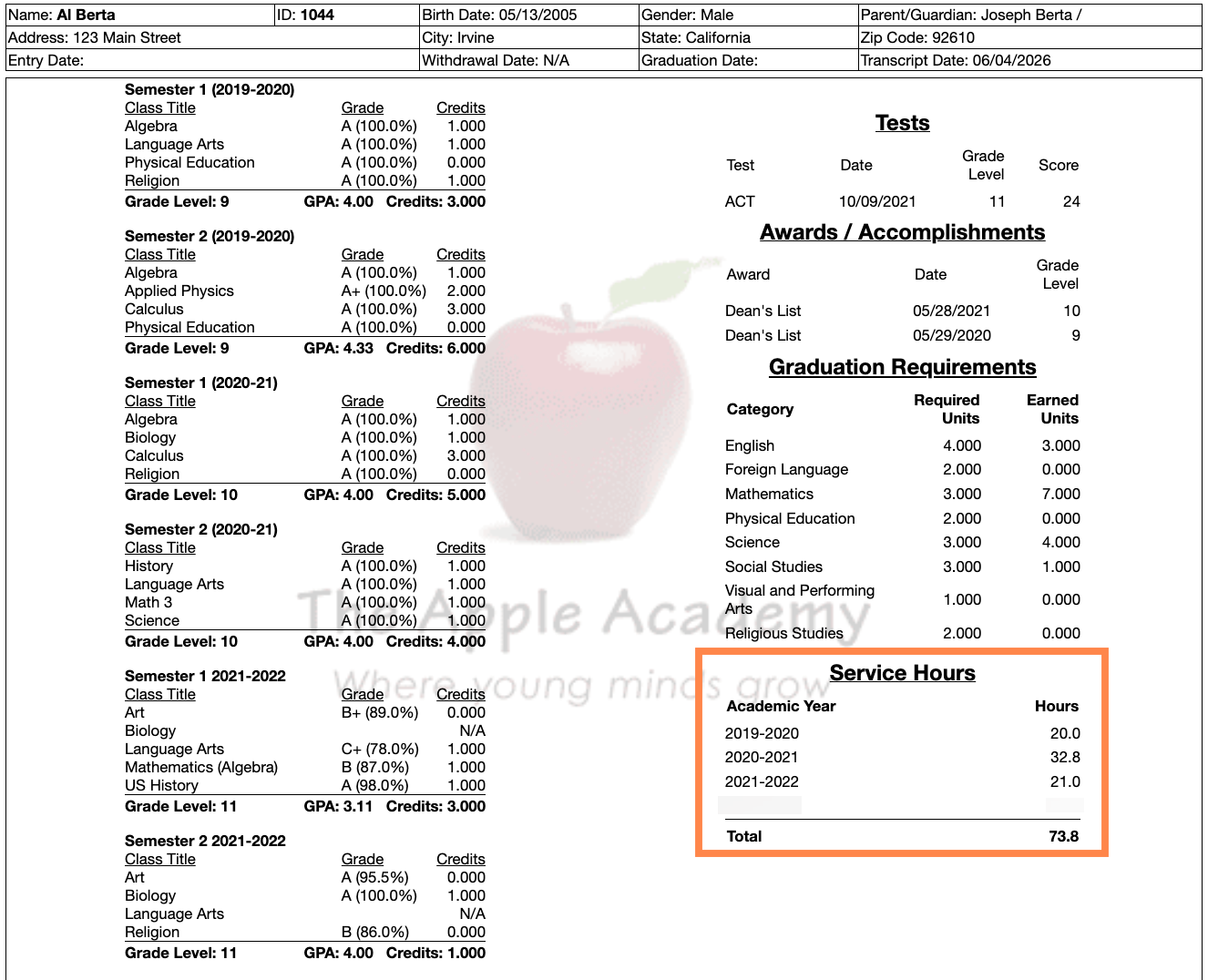
First, make sure service hours have been entered and approved for your students. For more information, please click here.
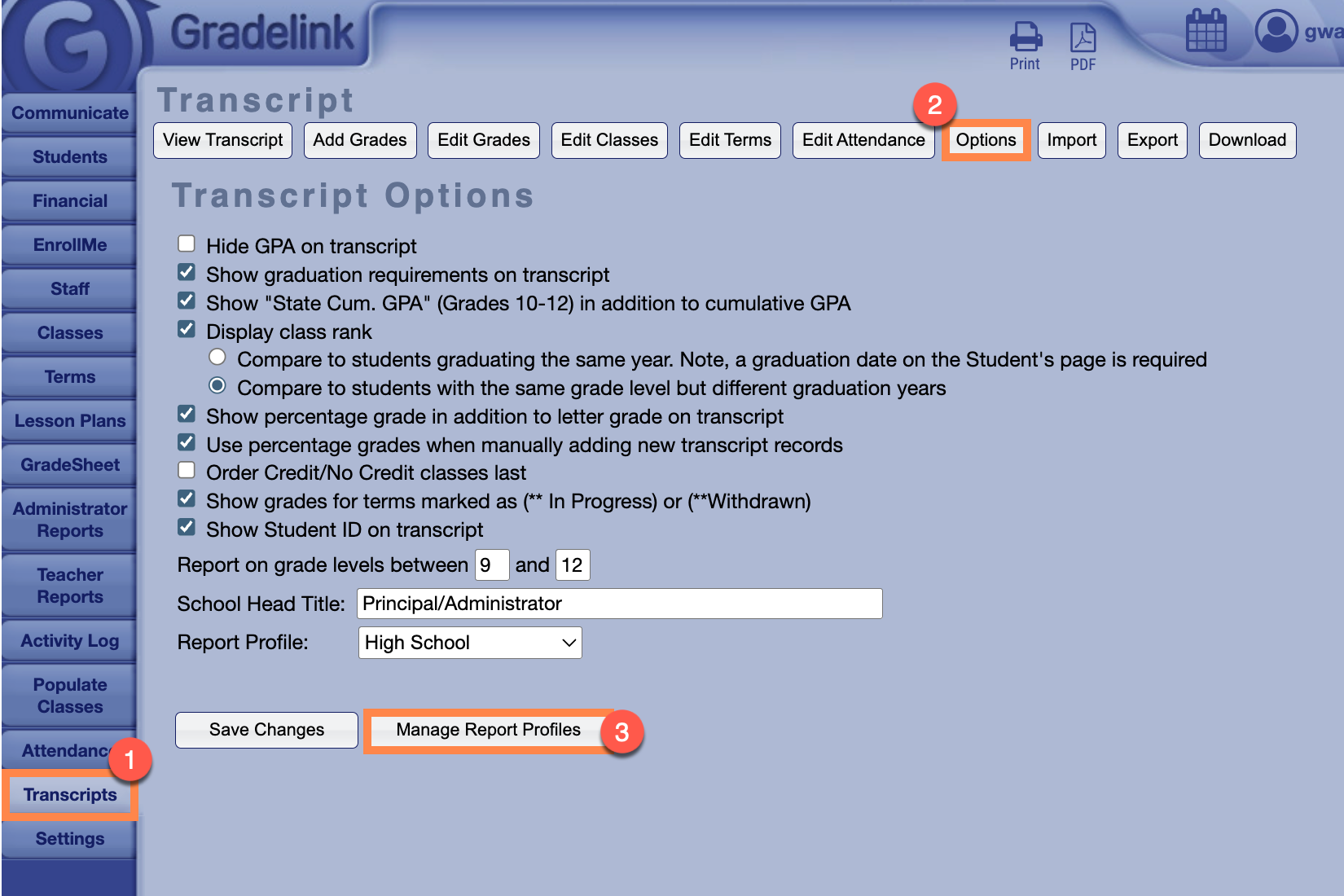
To enable Service Hours settings:
- Go to the Transcripts tab
- Click the Options button at the top of the page
- Click on the Manage Report Profiles button at the bottom of the page
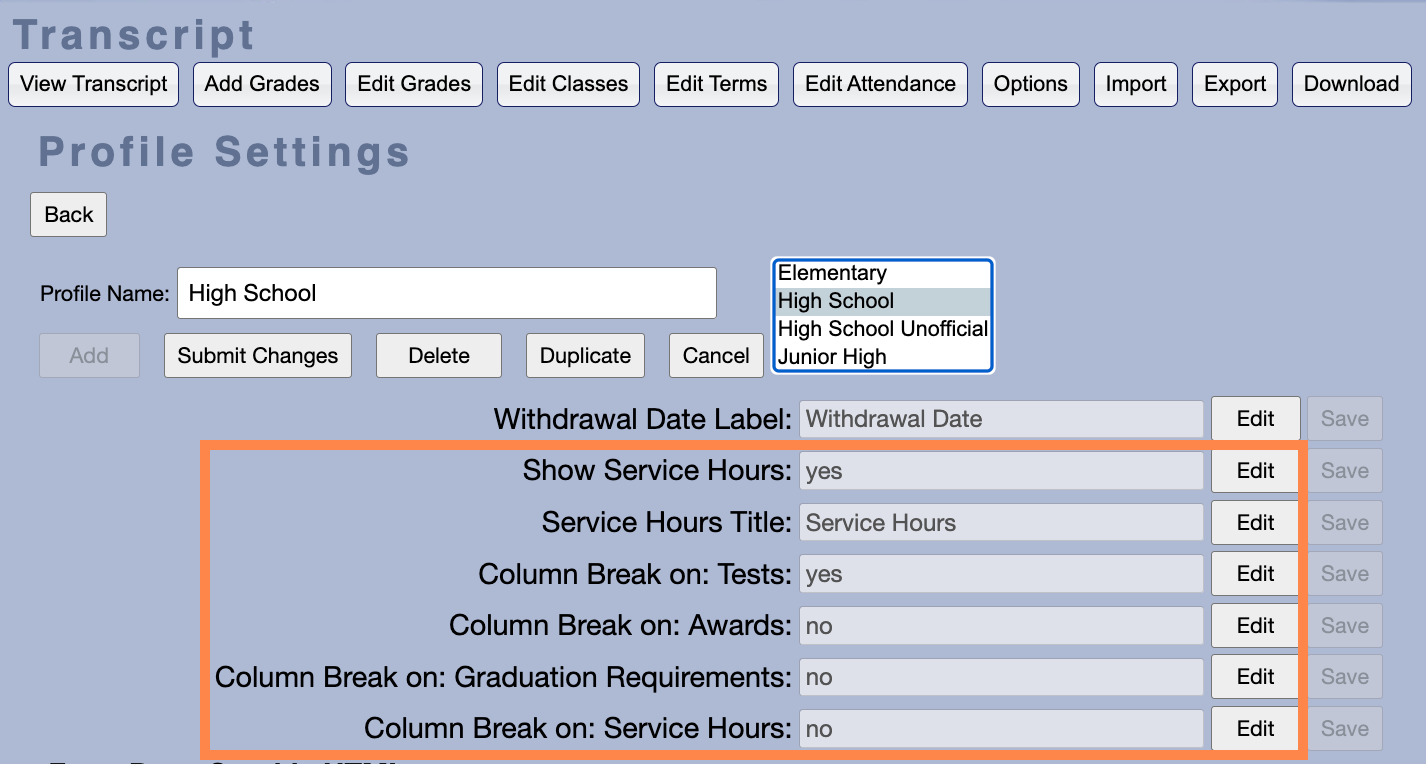
Six configurable options can be seen when you select a Transcript Profile:
- Show Service Hours – Edit to enable or disable the Service Hours section on transcripts.
- Service Hours Title – Customize the heading text for the Service Hours section (e.g., “Community Service Hours,” “Approved Service Hours,” etc.).
- Column Break on Tests/Awards/Graduation Requirements/Service Hours – These column break settings give schools additional flexibility to balance content across the page and ensure professional, well-formatted, printable transcripts.
Instead of manually updating fixed Start and End dates each year, schools can set a recurring Month/Day range (e.g., September 1 – May 31).
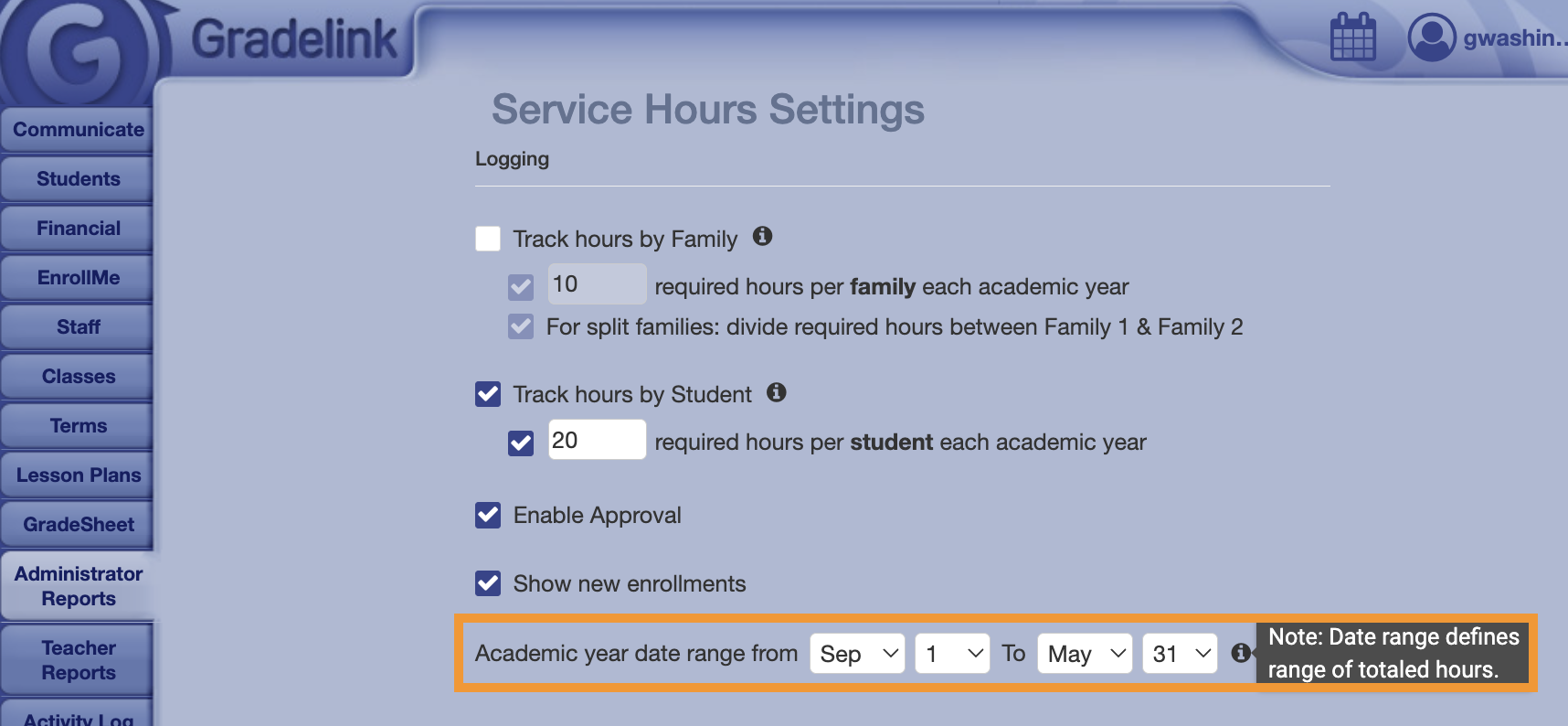
The system automatically applies this range to the current school year. Default ranges have been pre-populated for all schools based on the start and end dates of each school's start and end dates. Schools can customize these defaults as needed for their specific calendar.
Date range selections persist when switching between sub-tabs within Service Hours.