
A guide for school staff.
The Populate Classes page is where you schedule students into classes. You choose a class, filter the list of students, and move them into or out of the class. Gradelink warns you about schedule conflicts as you go, and has a shortcut for elementary schools where one teacher teaches the same students all day.
1. Add students to a class
 1 2 3 4 5
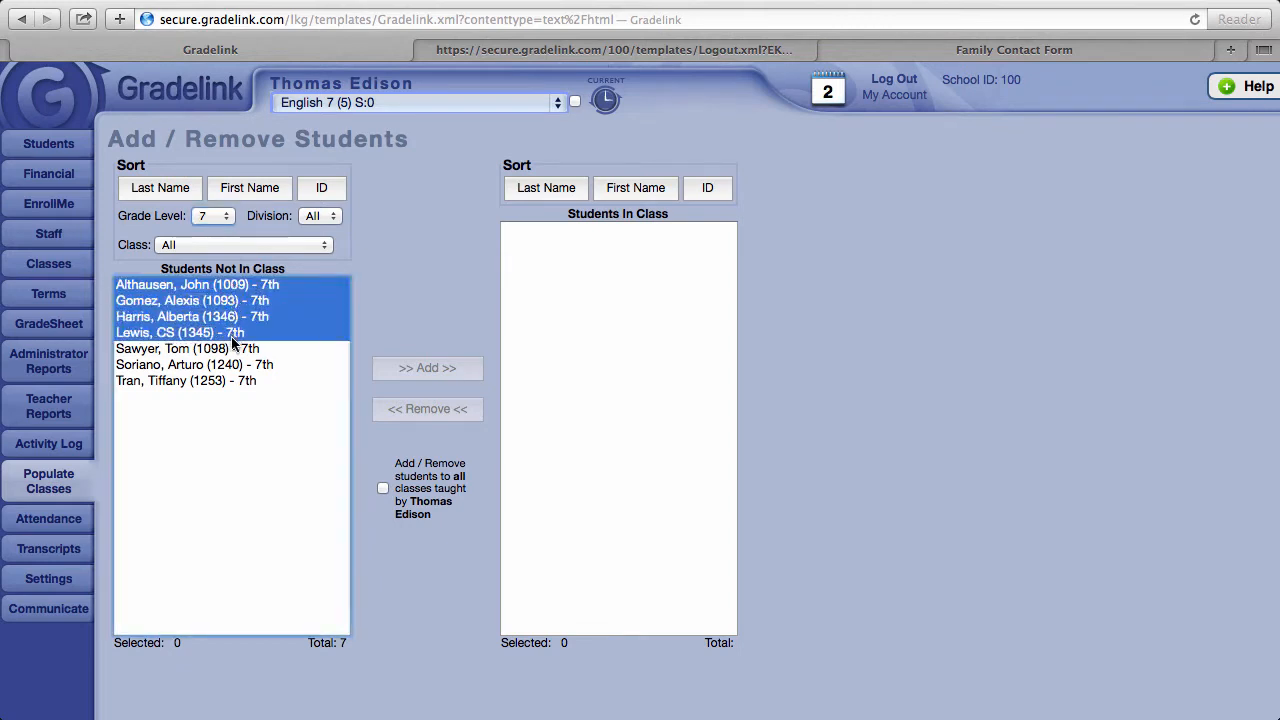
- 1Click Populate Classes in the menu on the left. The Add / Remove Students page opens.
- 2Use the drop-down menu at the very top of the page to choose the class you want to populate. It lists all of your classes, showing the teacher's name above it.
- 3Above the Students Not In Class list, use the Grade Level filter to narrow the list (for example, 7 for a seventh-grade English class). Division and Class filters are also available, and the Last Name, First Name and ID buttons sort the list.
- 4Highlight the students you want to place in the class. To pick several, hold Ctrl (Windows) or Cmd (Mac) while you click.
- 5Click >> Add >>. The students move to the Students In Class list on the right, which means they are now enrolled in the class.
The Selected and Total counts under each list show how many students are highlighted and how many are in the list.
2. Watch for schedule conflicts
When you click a student in either list, their schedule for the current term appears on the right side of the page, showing each class's period, title and number of students. If adding them to the selected class would clash with a class they already have, Gradelink shows the conflicting classes in red.
 1
1- 1In this example, the class is still English 7 but the filter is set to grade 6. Selecting Earhart, Amelia shows that she is already enrolled in an English class, so English 6 turns red. Check the schedule before you click Add.
3. Remove students from a class
 1 2
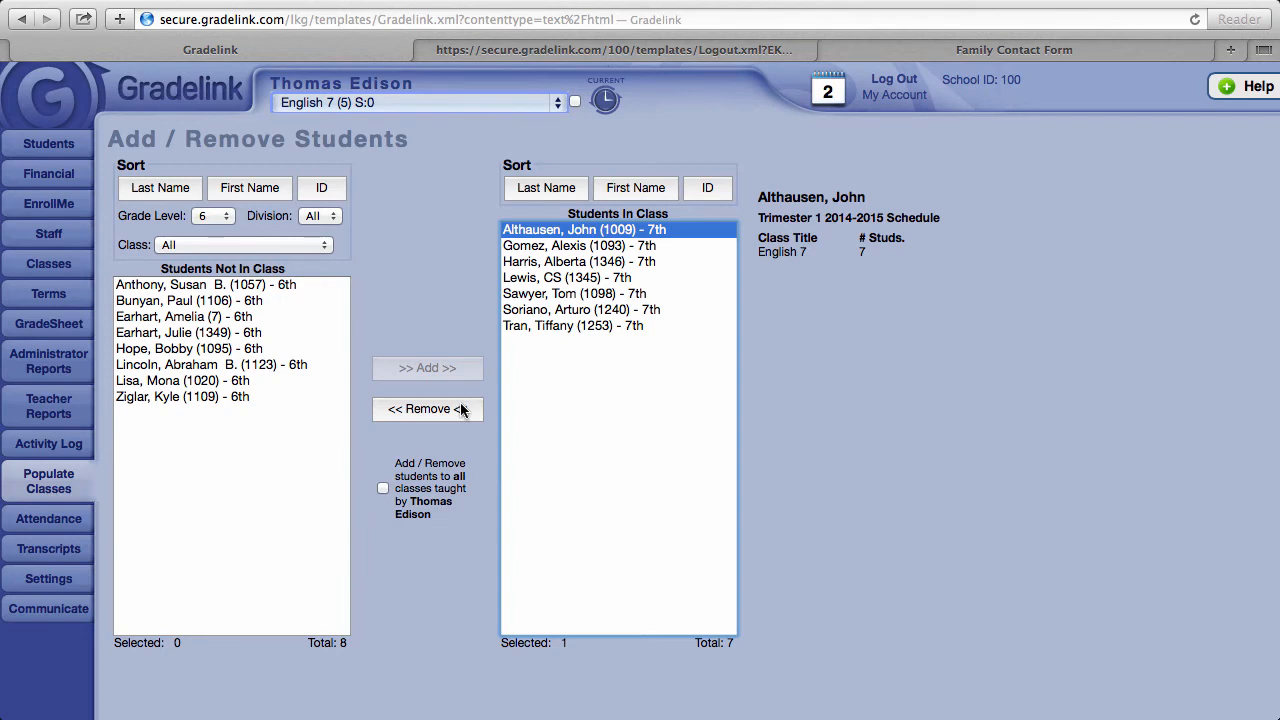
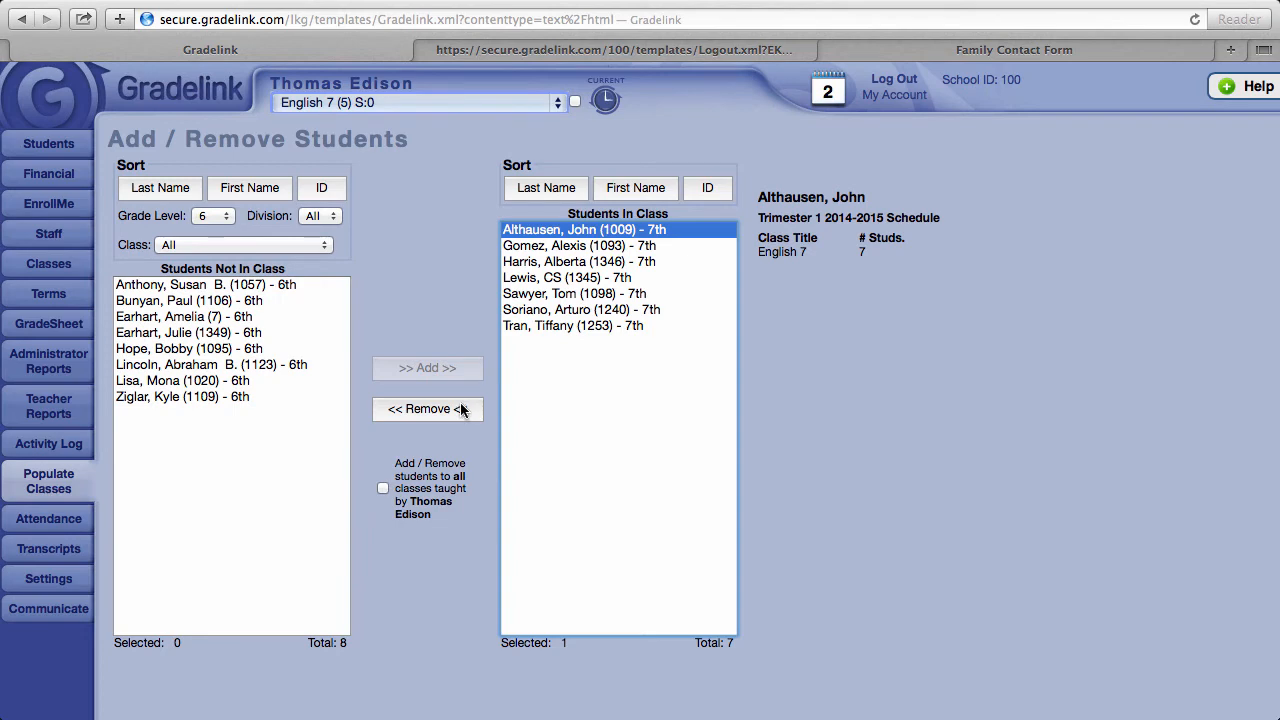
1 2- 1With the class selected at the top, click the student's name in the Students In Class list.
- 2Click << Remove <<. When the browser asks you to confirm that you want to remove the student from the class, click OK. The student moves back to Students Not In Class.
4. Elementary shortcut: populate all of a teacher's classes
In elementary schools, one teacher usually teaches the same group of students all day in different subjects. Instead of populating each class one at a time, you can do them all at once.
 1 2
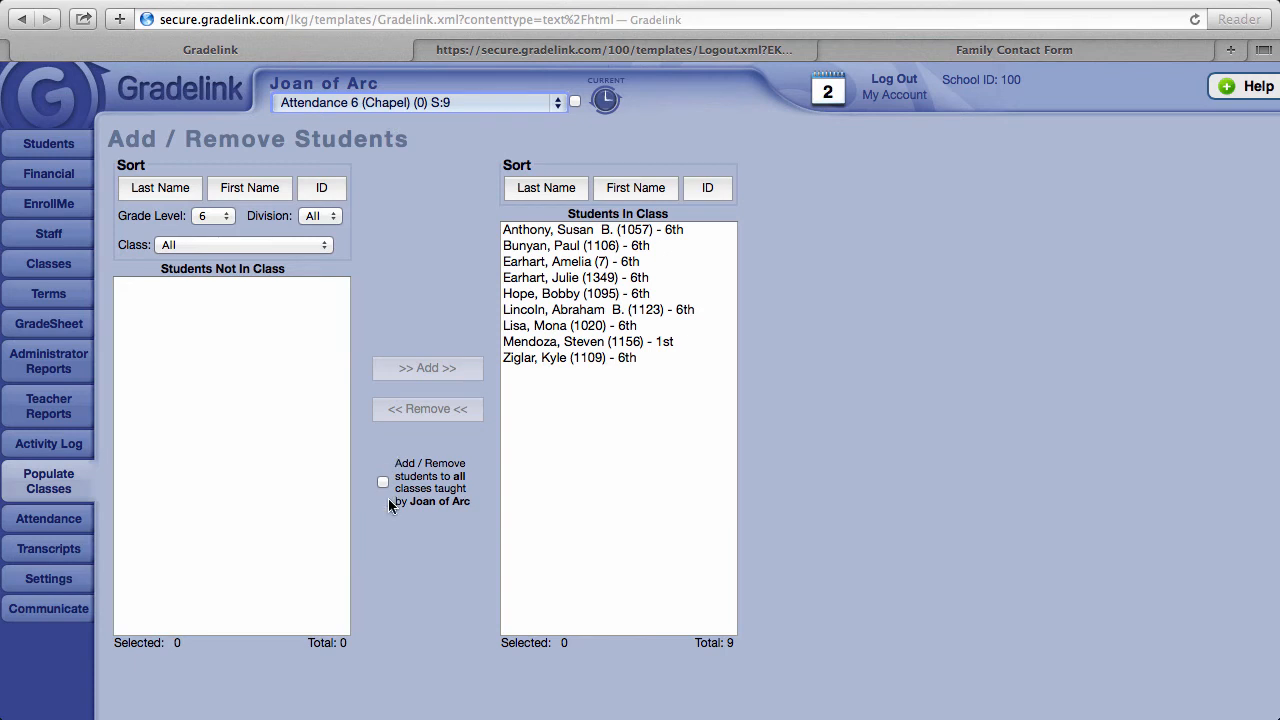
1 2- 1Choose one of the teacher's classes from the drop-down menu at the top.
- 2Between the two lists, check Add / Remove students to all classes taught by [teacher name].
- 3Add (or remove) students as described above. The students are added to the class you selected and to all other classes taught by that teacher.
Prefer video?
This walkthrough is also available as a short video.