
Absence Reporting in Gradelink gives parents an easy way to report absences from their web login or mobile app. Administrators can get notifications, and for schools that track Daily Attendance, a subsection in the Attendance page will appear allowing quick and easy confirmation and application of appropriate attendance values, even months ahead such as for family vacations.
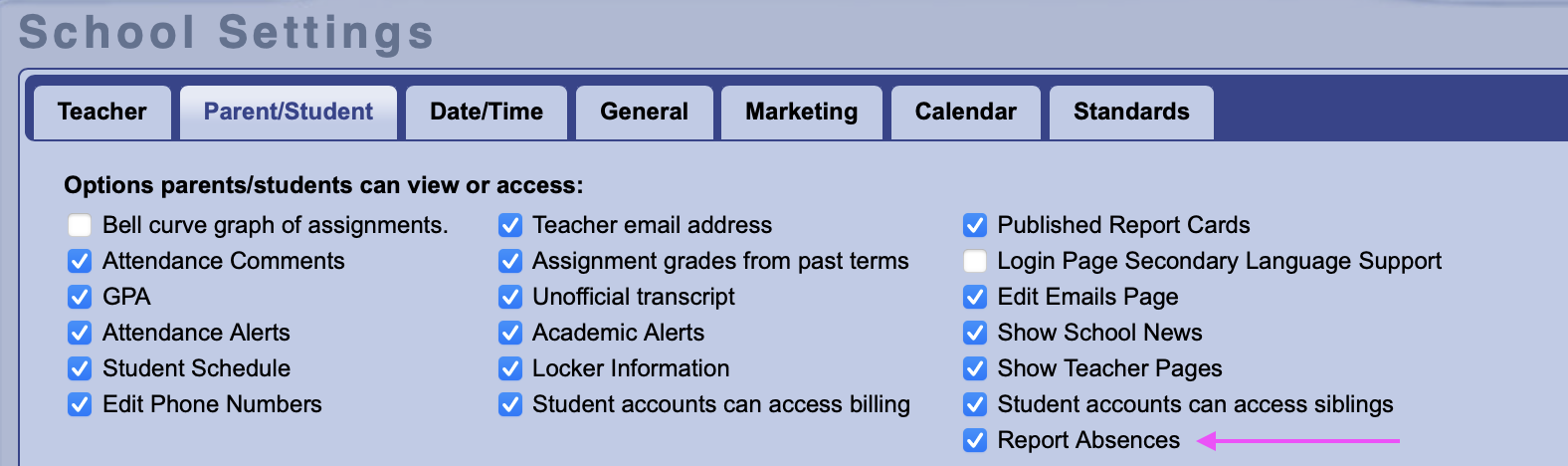
To enable, turn on Settings > Parent/Student > Report Absences
Once enabled, the Attendance page in the Parent login on desktop/web and mobile App will display a “Report Absence” button. By tapping this, parents can select the student(s) initial absence date, optionally the time, return date/time; comment/reason, and the parent/guardian and contact information which will be prefilled with parent info on file.
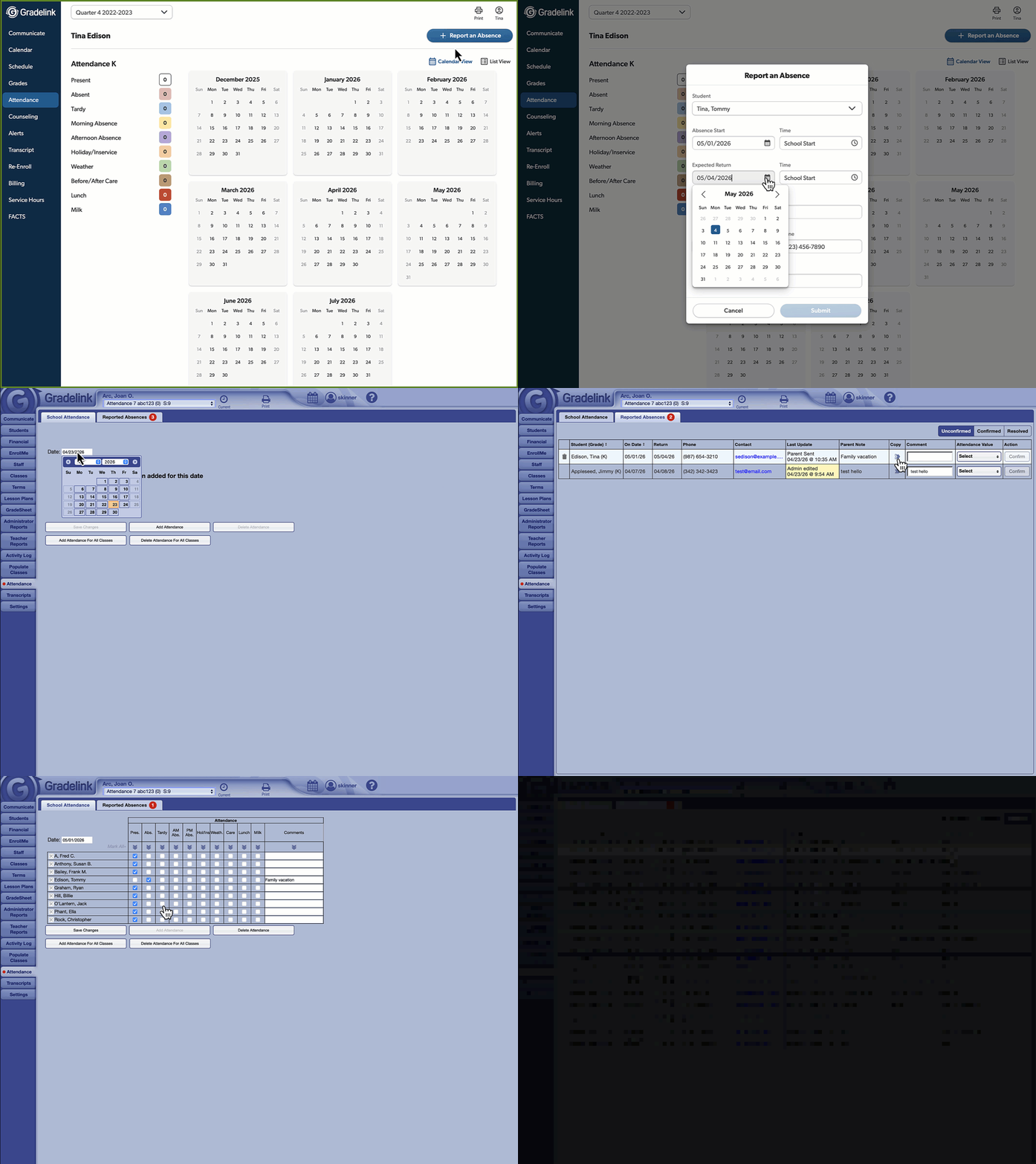
Upon clicking Submit the following will happen:
Opted-in teachers and administrators will receive email notifications of the absence reports by parents.
To allow teachers to receive Absence Report notifications for their respective students, turn on Settings > Teacher > Absence Report Notifications
To receive notifications as an Administrator, select Staff > Main > Notifications > Receive Absence Reports
In addition, for students in Daily Attendance classes the following features are enabled:
Absent reports will appear in the Admin/Teacher login under Attendance > Reported Absences. This page section allows quick and easy marking of attendance which can be automatically included in normal attendance tracking.
The Reported Absences page has 3 filter buttons on the top right: Unconfirmed, Confirmed and Resolved.
Unconfirmed shows absence reports that have yet to be addressed/acknowledged. Here, Administrators or the relevant teacher can see the student name, absence start and return, parent contact info and note. The Copy button (>>>) can be used optionally to copy the parent note into the school’s Attendance Comment field if desired, or the field can be manually edited or left blank. Attendance Value allows the admin/teacher to select the appropriate attendance value(s) as configured by your school for the reported absence day(s). Click the Confirm button to save/acknowledge the chosen Attendance Values and comment and queue it for inclusion in the Attendance Records once taken on the corresponding day(s).
Absence Reports that start and/or return at a specific time will be split into more than one entry. For example, an absence with a start/on date of March 1st at 1:30pm and return date of March 3rd (start of school) will be split into 2 entries, one for March 1st as it may be a partial day for which “PM Absent” or “Afternoon Absence” is appropriate; and one for March 2nd for which a normal (full day) “Absent” makes more sense. Since the student returns on March 3rd at the start of school, attendance can be recorded normally so no row is shown for that day.
Confirmed shows Absence Report entries which have been confirmed, but not yet applied to attendance records as the corresponding day’s attendance has not been taken yet. These entries can be edited by the admin/teacher if needed.
Resolved shows confirmed Absence Report entries which have been applied to Attendance that has been taken. These entries can no longer be edited. However Attendance Records can be amended if needed through the School Attendance page.
Entries from this page can be deleted if needed by clicking the trash can icon on the left side. This is helpful if a parent inadvertently submitted an entry or cancelled a family vacation.
Once the teacher (or admin, depending on your school’s process) records attendance for the day in the School Attendance section, any confirmed Reported Absences corresponding to that day will be applied, overriding the default mark of Present for any students who have entries. Such entries are then considered Resolved.
Absence Reports can also be submitted for past days or when Attendance has already been recorded for the class. Confirming these entries will apply the values immediately to that day’s attendance, overriding any value that was initially recorded for the student.
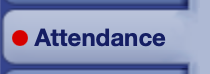
A red dot appears on the Attendance tab when Unconfirmed Absence Reports exist, and a number badge of the unconfirmed count appears in the Reported Absences sub-tab.
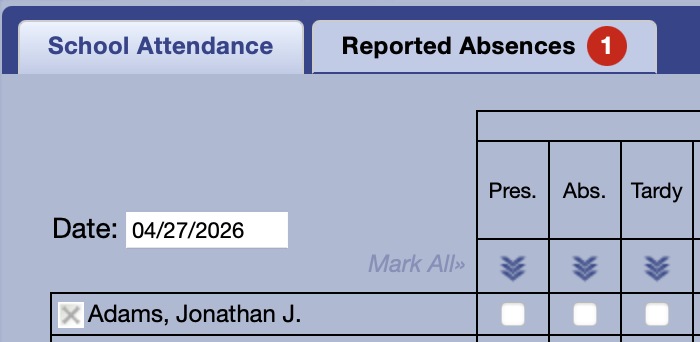
Absence Reports can be submitted for any dates within the current school year.